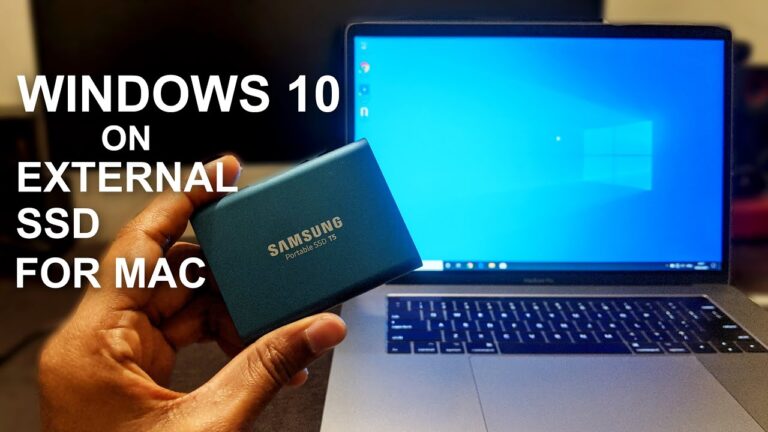
Process of Running Windows on Mac Using Parallels

Are you tired of having to switch between a Mac and a Windows computer every time you need to use an application that only works on Windows? Fortunately, there is a solution: Parallels. This software allows you to run Windows on your Mac, without having to reboot your computer or install a separate virtual machine. In this article, we’ll go through the process of running Windows on Mac using Parallels.
What is Parallels?
Parallels is a software that allows you to run Windows on your Mac without having to reboot your computer or install a separate virtual machine. It’s like having two computers in one! Parallels is compatible with macOS, Windows, and Linux.
Step 1: Download and Install Parallels
The first step in running Windows on your Mac using Parallels is to download and install the software. You can download Parallels from the official website. Once the download is complete, follow the on-screen instructions to install the software on your Mac.
Step 2: Create a Virtual Machine
After installing Parallels, you’ll need to create a virtual machine to run Windows. A virtual machine is a software environment that emulates a computer system. To create a virtual machine in Parallels, follow these steps:
- Open Parallels on your Mac.
- Click on the “+” button in the top right corner of the window.
- Select “Install Windows or another OS from a DVD or image file”.
- Choose the Windows ISO file you want to install and click “Continue”.
- Enter a name for your virtual machine and select the location where you want to save it.
- Set the amount of memory and CPU cores you want to allocate to your virtual machine.
- Click “Create” to create your virtual machine.
Step 3: Install Windows
Now that you’ve created your virtual machine, it’s time to install Windows. To install Windows on your virtual machine, follow these steps:
- Open Parallels and select your virtual machine from the list.
- Click on the “Play” button to start your virtual machine.
- Follow the on-screen instructions to install Windows on your virtual machine.
Step 4: Install Parallels Tools
After installing Windows on your virtual machine, you’ll need to install Parallels Tools. Parallels Tools is a set of utilities that improve the performance and integration of Windows with your Mac. To install Parallels Tools, follow these steps:
- Start your virtual machine and log in to Windows.
- Go to the “Actions” menu in Parallels and select “Install Parallels Tools”.
- Follow the on-screen instructions to install Parallels Tools.
Step 5: Enjoy Windows on Your Mac
Congratulations! You’ve successfully installed Windows on your Mac using Parallels. You can now enjoy all the benefits of running Windows on your Mac, without having to switch between two computers.
Frequently Asked Questions (FAQs)
Is Parallels compatible with all versions of Windows?
Do I need to purchase a Windows license to use Parallels?
How much does Parallels cost?
Can I run other operating systems on Parallels?
Does running Windows on my Mac using Parallels affect the performance of my computer?
Conclusion
Running Windows on a Mac using Parallels is a straightforward process that can be completed in just a few steps. With Parallels, you can run Windows applications on your Mac without having to reboot your computer or install a separate virtual machine. If you need to use Windows for work or personal use, Parallels is a great solution that can save you time and effort.