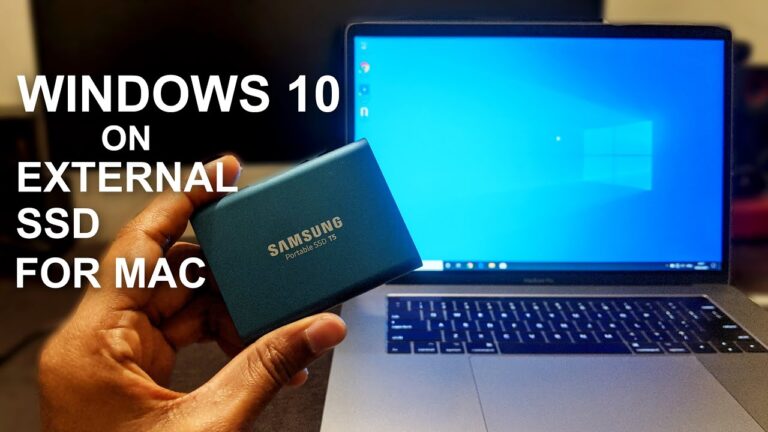
Virtualization for Windows: A Comprehensive Guide

Are you looking to improve your computing experience with Windows? Do you want to run multiple operating systems on your PC simultaneously without the need for additional hardware? If so, virtualization for Windows is the solution you’re looking for. In this article, we’ll dive into everything you need to know about virtualization for Windows, from its benefits and applications to the tools and software required to implement it.
Understanding Virtualization for Windows
Virtualization for Windows is the creation of a virtual environment on a physical Windows machine that allows multiple operating systems to run simultaneously. By installing a virtual machine software, such as VirtualBox or VMWare, you can create virtual machines on your Windows computer and install other operating systems like Linux or macOS.
Benefits of Virtualization for Windows
Virtualization for Windows has several advantages, including:
1. Cost Savings
Virtualization for Windows allows you to run multiple operating systems on a single physical machine, reducing the need for additional hardware. This saves costs associated with buying new computers, servers, or hardware components.
2. Flexibility
Virtualization for Windows offers great flexibility. You can run multiple operating systems on the same machine and switch between them easily without the need for rebooting. This is beneficial for testing and developing applications or running multiple software versions.
3. Security
Virtualization for Windows offers enhanced security features by isolating the virtual environment from the host operating system. This prevents malware and other security threats from infecting your system.
4. Resource Management
Virtualization for Windows allows you to allocate resources, such as RAM and CPU, to the virtual machine, ensuring that the operating systems and applications run smoothly.
Applications of Virtualization for Windows
Virtualization for Windows has several applications, including:
1. Testing and Development
Virtualization for Windows allows developers to test and develop applications on multiple operating systems without the need for multiple physical machines.
2. Legacy Applications
Virtualization for Windows allows you to run legacy applications that are not compatible with the latest operating systems. By running the legacy application in a virtual environment, you can avoid compatibility issues.
3. Server Consolidation
Virtualization for Windows allows you to consolidate multiple servers into a single physical machine, reducing hardware costs and simplifying server management.
Tools and Software for Virtualization for Windows
Several tools and software are available for virtualization for Windows. Some of the most popular ones include:
1. VirtualBox
VirtualBox is a free and open-source virtualization software that allows you to run multiple operating systems on your Windows computer.
2. VMWare
VMWare is a commercial virtualization software that offers a wide range of features and capabilities, including virtualization for Windows.
3. Hyper-V
Hyper-V is a native hypervisor for Windows that allows you to create and manage virtual machines on your Windows computer.
Frequently Asked Questions (FAQs)
Is virtualization for Windows difficult to set up?
Can I run macOS on a virtual machine using virtualization for Windows?
Will virtualization for Windows slow down my computer?
Can I run games on a virtual machine using virtualization for Windows?
Is virtualization for Windows secure?
Conclusion
Virtualization for Windows is a great way to improve your computing experience by allowing you to run multiple operating systems on a single physical machine. It offers cost savings, flexibility, security, and resource management. With the right tools and software, you can easily set up virtualization for Windows and enjoy its benefits.