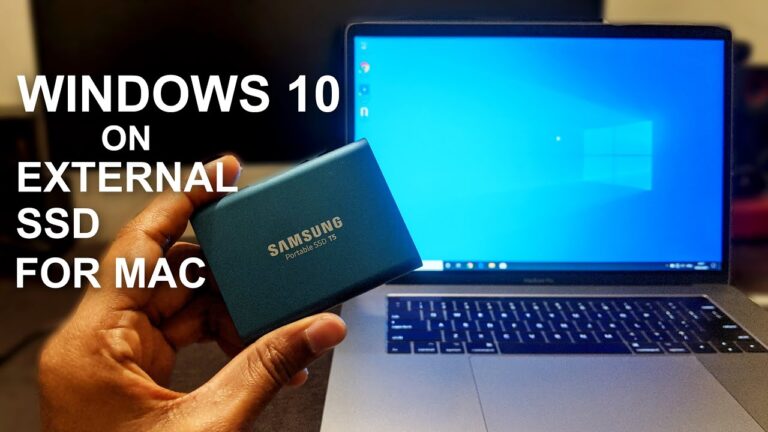
How to Run Windows XP on a Mac: A Step-by-Step Guide

If you own a Mac but need to run Windows XP for some reason, you might think it’s impossible. However, thanks to modern virtualization software, running Windows XP on a Mac is not only possible but also relatively easy. In this article, we’ll guide you through the process step-by-step, from choosing the right virtualization software to installing Windows XP and getting it to run smoothly.
Understanding Virtualization Software
To run Windows XP on a Mac, you’ll need virtualization software. Virtualization software allows you to run another operating system within your current one. There are several options available, including:
Parallels Desktop
Parallels Desktop is one of the most popular virtualization software options for Macs. It’s user-friendly and offers good performance.
VMware Fusion
VMware Fusion is another popular virtualization software option for Macs. It’s known for its high performance and flexibility.
VirtualBox
VirtualBox is a free, open-source virtualization software option. It’s a good choice if you’re on a budget, but it may not offer the same performance as the paid options.
Requirements
Before you start, make sure your Mac meets the following requirements:
- A Mac with an Intel processor
- At least 4GB of RAM (8GB or more is recommended)
- At least 15GB of free disk space
- A valid Windows XP license
Step-by-Step Guide
Now that you understand the virtualization software options and requirements, let’s dive into the step-by-step guide for running Windows XP on a Mac:
Step 1: Choose Virtualization Software
Choose the virtualization software that best fits your needs and budget. We recommend Parallels Desktop or VMware Fusion for the best performance.
Step 2: Install Virtualization Software
Install the virtualization software of your choice on your Mac.
Step 3: Create a New Virtual Machine
Create a new virtual machine within your virtualization software. Choose Windows XP as the operating system and allocate at least 2GB of RAM to the virtual machine.
Step 4: Install Windows XP
Insert your Windows XP installation disc or ISO file into your Mac and follow the prompts to install Windows XP within the virtual machine.
Step 5: Install Virtualization Tools
Install the virtualization tools that come with your virtualization software. These tools will help Windows XP run smoothly within the virtual machine.
Step 6: Install Drivers
Install any necessary drivers within Windows XP to ensure all hardware is recognized and working properly.
Step 7: Configure Settings
Configure any necessary settings within Windows XP, such as networking and display settings.
Step 8: Start Windows XP
Start up Windows XP within the virtual machine and begin using it just as you would on a regular PC.
Tips for Running Windows XP on a Mac
- Allocate at least 2GB of RAM to the virtual machine for optimal performance.
- Make sure you have enough free disk space for both the virtual machine and Windows XP.
- Consider using an external hard drive for storing the virtual machine and Windows XP if you have limited disk space on your Mac.
- Install anti-virus software within Windows XP to protect against viruses and malware.
- Be aware that running Windows XP within a virtual machine may not offer the same performance as running it natively on a PC.
Frequently Asked Questions (FAQs)
Can I run Windows XP on a Mac without virtualization software?
Will running Windows XP on my Mac slow down my Mac’s performance?
Can I still get support for Windows XP if I’m running it on a Mac?
Can I run other versions of Windows on my Mac using virtualization software?
Is it legal to run Windows XP on a Mac using virtualization software?
Conclusion
Running Windows XP on a Mac is easier than you might think thanks to virtualization software. By following the step-by-step guide above, you can install and run Windows XP within a virtual machine on your Mac. Just be sure to allocate enough resources and take necessary security precautions to ensure a smooth and safe experience.