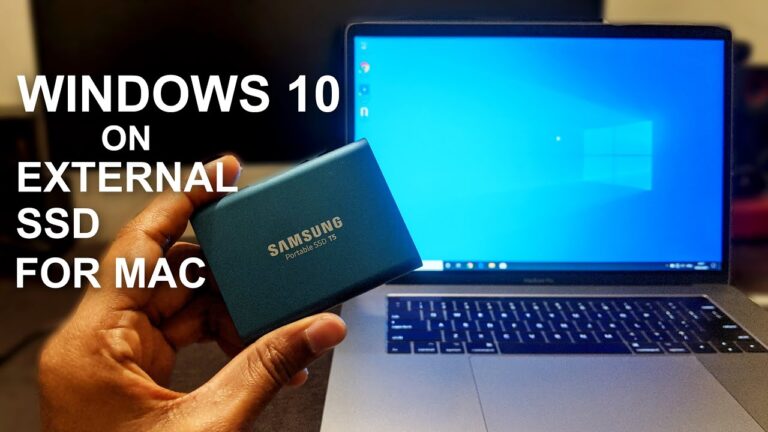
Way to Running Windows Apps on Mac

As a Mac user, you may have found yourself in a situation where you need to run Windows applications on your device. Whether it’s for work, gaming, or personal use, there are many reasons why you might need to use a Windows app on your Mac. Fortunately, there are several ways to do this, each with its own advantages and disadvantages. In this article, we’ll explore the different methods for running Windows apps on a Mac and help you choose the best one for your needs.
Understanding the Different Methods
Before we dive into the specifics of each method, it’s important to understand the different ways you can run Windows apps on a Mac. There are two primary methods:
- Virtualization: Virtualization software allows you to run Windows as a “virtual machine” within your Mac operating system. This means that you can run Windows apps alongside your Mac apps without needing to reboot your computer. Examples of virtualization software include Parallels Desktop, VMWare Fusion, and Oracle VirtualBox.
- Emulation: Emulation software, on the other hand, allows you to run Windows apps directly on your Mac operating system, without needing to install Windows as a virtual machine. Emulation software essentially “tricks” the Windows app into thinking it’s running on a Windows machine. Examples of emulation software include Wine and CrossOver.
Each method has its own advantages and disadvantages, which we’ll explore in more detail below.
Method 1: Virtualization
Virtualization software is a popular method for running Windows apps on a Mac. Here’s how it works:
- You install virtualization software on your Mac, such as Parallels Desktop or VMWare Fusion.
- You create a new “virtual machine” within the virtualization software.
- You install Windows within the virtual machine, just as you would if you were installing Windows on a physical PC.
- You can then install and run Windows apps within the virtual machine, alongside your Mac apps.
One of the primary advantages of virtualization is that it allows you to run Windows and Mac apps side-by-side, without needing to reboot your computer. This can be particularly useful if you need to switch between the two operating systems frequently.
However, there are some downsides to virtualization as well. For one, it requires a significant amount of system resources, so you’ll need a relatively powerful Mac to run Windows apps smoothly. Additionally, virtualization software can be expensive, with prices ranging from $80 to $200 or more.
Method 2: Emulation
Emulation software is another option for running Windows apps on a Mac. Here’s how it works:
- You install emulation software on your Mac, such as Wine or CrossOver.
- You download and install the Windows app you want to run within the emulation software.
- The emulation software “tricks” the Windows app into thinking it’s running on a Windows machine, allowing it to run directly on your Mac.
One advantage of emulation is that it’s typically faster and requires fewer system resources than virtualization. Additionally, emulation software is often free or relatively inexpensive.
However, there are some downsides to emulation as well. For one, not all Windows apps are compatible with emulation software, so you may not be able to run all the apps you need. Additionally, emulation can sometimes result in slower performance or other issues, especially with more complex or resource-intensive apps.
Method 3: Boot Camp
Boot Camp is a built-in utility on Macs that allows you to install Windows on a separate partition of your hard drive, effectively turning your Mac into a dual-boot system. Here’s how it works:
- You use the Boot Camp Assistant utility to create a separate partition on your hard drive for Windows.
- You install Windows on the newly created partition, just as you would on a physical PC.
- You can then switch between macOS and Windows by restarting your computer and selecting the desired operating system at startup.
One of the primary advantages of Boot Camp is that it allows you to run Windows natively on your Mac, without any performance or compatibility issues. Additionally, because you’re running Windows on a separate partition, it doesn’t consume as many system resources as virtualization software.
However, Boot Camp does have some downsides as well. For one, switching between operating systems requires restarting your computer, which can be time-consuming and disruptive. Additionally, creating a separate partition for Windows can be a complex process, and you’ll need to allocate enough storage space for both operating systems.
Choosing the Best Method for You
So, which method should you choose for running Windows apps on your Mac? Ultimately, the best method will depend on your specific needs and preferences. Here are some factors to consider:
- Compatibility: Not all Windows apps are compatible with all methods of running Windows on a Mac. Check the compatibility of the apps you need before choosing a method.
- Performance: If you need to run resource-intensive Windows apps, virtualization or Boot Camp may be a better option than emulation.
- Convenience: If you need to switch between operating systems frequently, virtualization may be the most convenient option.
- Cost: Virtualization software can be expensive, while emulation software is often free or relatively inexpensive.
Frequently Asked Questions (FAQs)
Can I run all Windows apps on a Mac using emulation software?
Will running Windows apps on a Mac slow down my computer?
Can I switch between macOS and Windows without restarting my computer?
Do I need to purchase a separate Windows license to use Boot Camp or virtualization software?
Can I run macOS apps on a Windows computer?
Conclusion
Running Windows apps on a Mac is easier than ever, thanks to the many virtualization, emulation, and dual-boot options available. By understanding the different methods and their advantages and disadvantages, you can choose the best option for your specific needs and ensure that you’re able to run all the Windows apps you need on your Mac.