
How to Take a Screenshot on Windows using a Mac Keyboard: A Comprehensive Guide
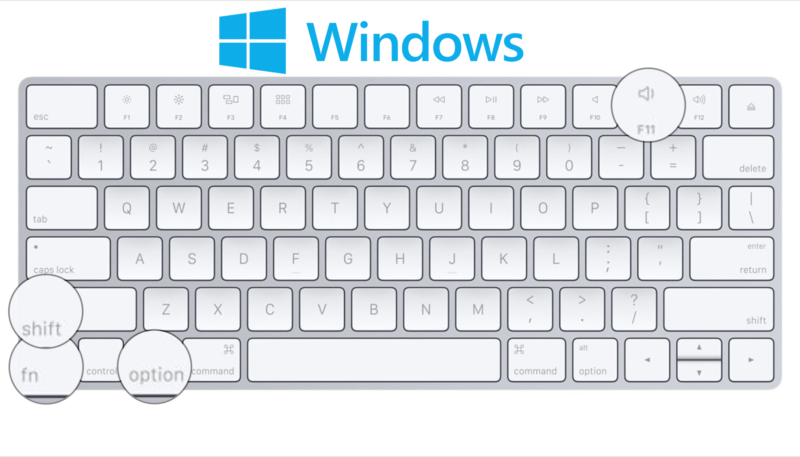
If you’re a Mac user who frequently switches between operating systems, you may have wondered how to take a screenshot on Windows using your Mac keyboard. Fortunately, there’s a simple solution that can help you easily capture screenshots on your Windows computer using your Mac keyboard. In this article, we’ll walk you through the steps you need to take to capture screenshots on Windows using a Mac keyboard.
Taking a screenshot is a great way to capture and share information, whether it’s an image, text, or anything else displayed on your computer screen. On Windows, taking screenshots is typically done by pressing the Print Screen key on your keyboard, which captures a full-screen image of your desktop. However, Mac keyboards don’t have a Print Screen key, which can make taking screenshots on Windows a bit tricky for Mac users.
In this article, we’ll explore how to use your Mac keyboard to take screenshots on your Windows computer. We’ll discuss the different types of screenshots you can capture, the keyboard shortcuts you need to use, and how to save and share your screenshots.
Why take a screenshot on Windows using a Mac keyboard?
If you’re a Mac user who frequently switches between operating systems, you may prefer to use your Mac keyboard instead of a Windows keyboard. This can make it difficult to use Windows-specific keyboard shortcuts, including those for taking screenshots.
By learning how to take screenshots on Windows using your Mac keyboard, you can avoid the need to switch back and forth between keyboards, making it easier and more efficient to capture and share information.
Understanding Mac keyboard shortcuts for Windows
Before we dive into the specifics of taking screenshots on Windows using a Mac keyboard, it’s important to understand the keyboard shortcuts you’ll need to use. Here are the most important keyboard shortcuts to keep in mind:
- Command (⌘): This key is equivalent to the Windows key on a Windows keyboard. It’s used in combination with other keys to perform various tasks, including taking screenshots.
- Shift: This key is used to modify the behavior of other keys, such as changing the area of the screen captured in a screenshot.
- Control (Ctrl): This key is used in combination with other keys to perform certain functions, such as copying a screenshot to the clipboard.
- Option (⌥): This key is equivalent to the Alt key on a Windows keyboard. It’s used in combination with other keys to perform various tasks, such as capturing a specific window.
How to take a full-screen screenshot on Windows using a Mac keyboard
Taking a full-screen screenshot on Windows using a Mac keyboard is easy. Here’s how to do it:
- Press the Command and Shift keys at the same time.
- Press the F14 key to capture a screenshot of your entire desktop.
- How to take a partial screenshot on Windows using a Mac keyboard
If you only need to capture a portion of your screen, you can take a partial screenshot. Here’s how:
- Press the Command and Shift keys at the same time.
- Press the F14 key to enter screenshot mode.
- Use your mouse to click and drag over the portion of the screen you want to capture.
- Release the mouse button to capture the screenshot.
The partial screenshot will be saved to your desktop as a PNG file.
How to capture a specific window on Windows using a Mac keyboard
If you want to capture a specific window on your Windows computer, you can use the following keyboard shortcut:
- Click on the window you want to capture to bring it to the front.
- Press the Command, Shift, and 4 keys at the same time.
- Press the Spacebar key.
- Move your mouse over the window you want to capture. The window will be highlighted.
- Click the mouse button to capture the window.
The window screenshot will be saved to your desktop as a PNG file.
How to copy a screenshot to the clipboard on Windows using a Mac keyboard
If you want to copy a screenshot to the clipboard instead of saving it as a file, you can use the following keyboard shortcut:
- Press the Command, Control, and Shift keys at the same time.
- Press the 4 key.
- Use your mouse to click and drag over the portion of the screen you want to capture.
- Release the mouse button to capture the screenshot.
The screenshot will be copied to your clipboard, and you can paste it into another application by pressing Command and V.
How to save a screenshot on Windows using a Mac keyboard
If you want to save a screenshot as a file, you can use the following keyboard shortcut:
- Press the Command, Shift, and 3 keys at the same time to capture a full-screen screenshot.
- Press the Command, Shift, and 4 keys at the same time to capture a partial screenshot.
- The screenshot will be saved to your desktop as a PNG file.
How to change the screenshot file format on Windows using a Mac keyboard
By default, screenshots on Windows are saved as PNG files. If you want to save your screenshots in a different format, you can use the following keyboard shortcut:
- Press the Command, Shift, and 5 keys at the same time to open the Snip & Sketch tool.
- Click on the Settings icon.
- Click on File format and choose the format you want to use.
Troubleshooting tips
If you’re having trouble taking screenshots on Windows using your Mac keyboard, here are a few troubleshooting tips:
- Make sure you’re pressing the correct keyboard shortcuts.
- Make sure your keyboard is functioning properly.
- Try restarting your computer.
- Try using a different keyboard.
Frequently Asked Questions (FAQs)
Can I take a screenshot of a specific area on Windows using a Mac keyboard?
How do I change the file format of my screenshots on Windows using a Mac keyboard?
Can I copy a screenshot to the clipboard on Windows using a Mac keyboard?
What should I do if I’m having trouble taking screenshots on Windows using my Mac keyboard?
Can I take a screenshot of a specific window on Windows using a Mac keyboard?
Conclusion
Taking screenshots on Windows using a Mac keyboard is easy once you know the keyboard shortcuts. By following the steps outlined in this article, you can quickly and easily capture screenshots on your Windows computer without the need for a separate keyboard.


