
Windows on Mac: How to Switch Between Parallels
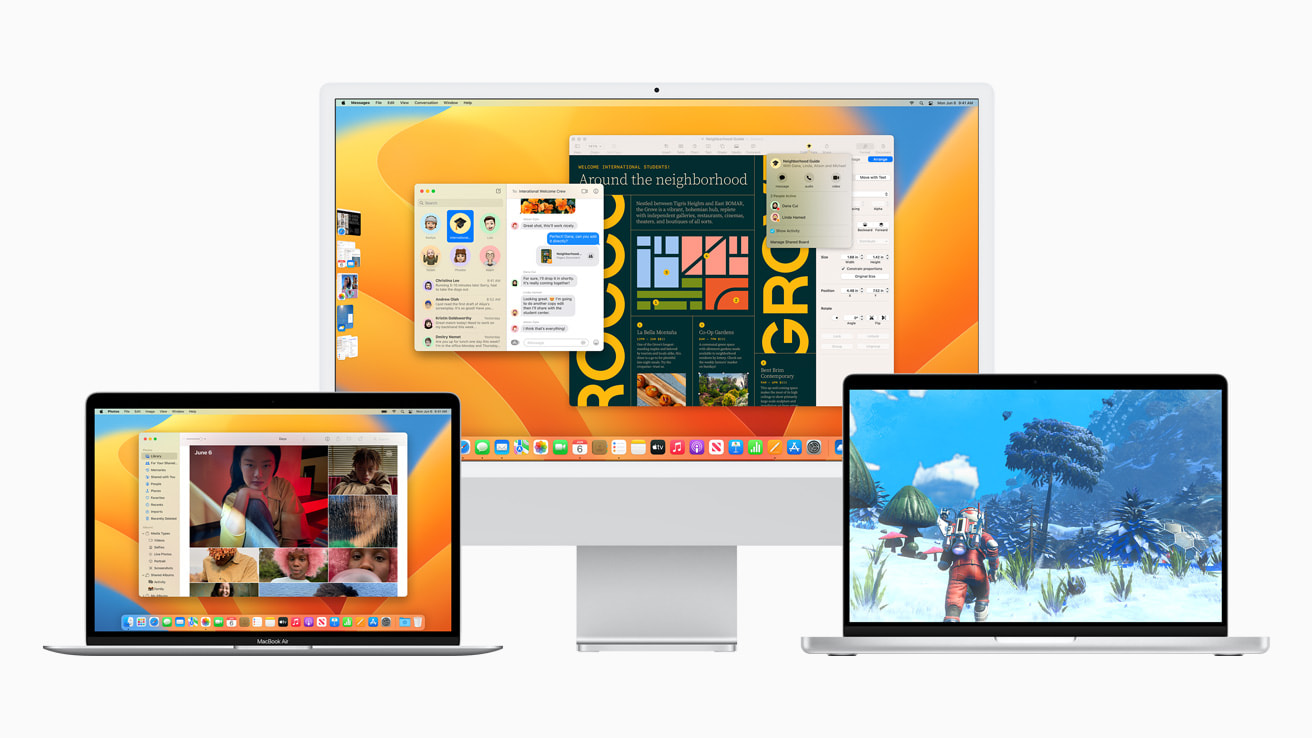
Are you a Mac user who also needs to use Windows applications? If so, you’ve probably heard of Parallels, a popular software that lets you run Windows on a Mac. However, switching between the two operating systems can be confusing, especially for new users. In this article, we’ll walk you through the steps of switching between Parallels and Mac, so you can seamlessly use both systems.
Using a Mac can be great, but sometimes you need to use a Windows application. This is where Parallels comes in. Parallels is a virtualization software that allows you to run Windows on your Mac. This means you can use Windows applications alongside your Mac applications. However, if you’re new to Parallels, switching between the two operating systems can be a bit tricky. In this article, we’ll show you how to switch between Parallels and Mac easily.
Setting Up Parallels
Before we can switch between Parallels and Mac, we need to make sure Parallels is set up properly. Here’s how to do it:
- Download and install Parallels.
- Open Parallels and create a new virtual machine.
- Install Windows on the virtual machine.
- Install any necessary Windows applications on the virtual machine.
Once you’ve completed these steps, you should have a working Parallels virtual machine with Windows installed on it.
Switching Between Parallels and Mac
Now that we have Parallels set up, let’s take a look at how to switch between Parallels and Mac. There are two main ways to do this:
Using Coherence Mode
Coherence mode is a Parallels feature that lets you run Windows applications alongside your Mac applications. In this mode, Windows applications are displayed as if they were running on a Mac. Here’s how to switch to Coherence mode:
- Click on the Parallels icon in your Mac’s dock.
- Click on the “View” menu.
- Select “Enter Coherence” mode.
Once you’ve done this, your Windows applications will be displayed as if they were Mac applications. To switch back to Windows, simply click on the Parallels icon in the dock and select “Exit Coherence” mode.
Using Full Screen Mode
Full screen mode is another option for switching between Parallels and Mac. In this mode, your Mac’s desktop is replaced by the Windows desktop. Here’s how to switch to full screen mode:
- Click on the Parallels icon in your Mac’s dock.
- Click on the “View” menu.
- Select “Enter Full Screen” mode.
Once you’ve done this, your Mac’s desktop will be replaced by the Windows desktop. To switch back to Mac, simply click on the green button in the upper-left corner of the Windows desktop and select “Exit Full Screen” mode.
Tips for Switching Between Parallels and Mac
Switching between Parallels and Mac can take some getting used to. Here are a few tips to help you make the transition:
- Use coherence mode when you only need to use one or two Windows applications.
- Use full screen mode when you need to use multiple Windows applications at once.
- Use keyboard shortcuts to switch between Parallels and Mac quickly.
- Customize your Parallels settings to fit your workflow.
Frequently Asked Questions (FAQs)
Can I use Parallels to run other operating systems besides Windows?
Do I need to purchase a separate license for Windows when using Parallels?
Can I transfer files between Parallels and Mac?
Can I customize the keyboard shortcuts for switching between Parallels and Mac?
Can I run Parallels on an older Mac?
Conclusion
Switching between Parallels and Mac doesn’t have to be confusing. By following the steps outlined in this article, you can easily switch between the two operating systems and use Windows applications alongside your Mac applications. With a little practice, you’ll be switching between Parallels and Mac.


